● Free & open source · Windows 10 & 11

Your internet speed,
right on the taskbar.

WinSpeed is a tiny speed meter that lives next to your clock. It also tests your connection, tracks your data usage and warns you before you hit a cap.

Installer or portable zip · No admin rights · No ads, no telemetry

WinSpeed meter on the Windows 11 taskbar

The meter sits next to the clock and follows your light or dark taskbar.

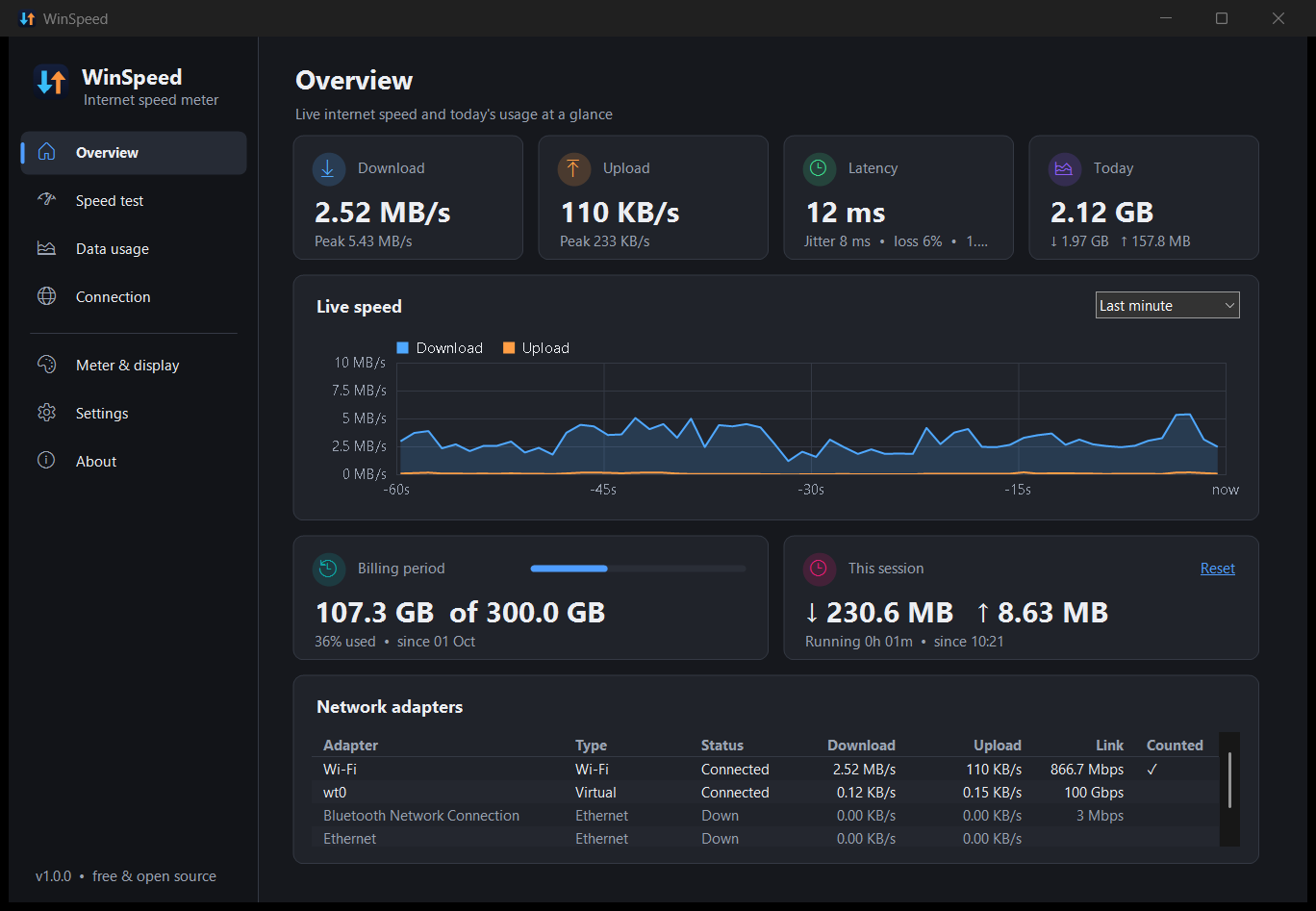
WinSpeed overview window in dark mode
Features

Everything a speed meter should do.
Nothing it shouldn't.

Small enough to forget it's running, thorough enough to answer "why is my internet slow?"

Live taskbar meter

Download and upload speed next to the clock, stacked or on one line, with an optional mini graph and ping.

Built-in speed test

Download, upload, ping and jitter on Cloudflare's global network, with history, CSV export and scheduling.

Data usage history

Hour by hour and per adapter. View by day, month or year, drill down, and export to a spreadsheet.

Data-cap alerts

Set a monthly or daily limit and your billing day. WinSpeed warns you at your chosen percentage and at 100 %.

Connection monitor

Latency, jitter and packet loss, plus a notification the moment your internet drops and when it's back.

Private by design

No telemetry, no ads, no account. Privacy mode masks IP and MAC addresses when you share your screen.

Make it yours

Your units. Your look. Your spot.

Every option applies instantly, so you can see exactly what you're getting.

  • KB/s or Mbps: automatic bytes or bits, or any fixed unit, with a 1024 or 1000 multiplier
  • Labels, fonts and colours: arrows, text, background opacity and speed highlights
  • Anywhere: next to the tray, on the left, or as a floating widget; just drag it
  • Out of the way: hides during full-screen games and videos, or click straight through it
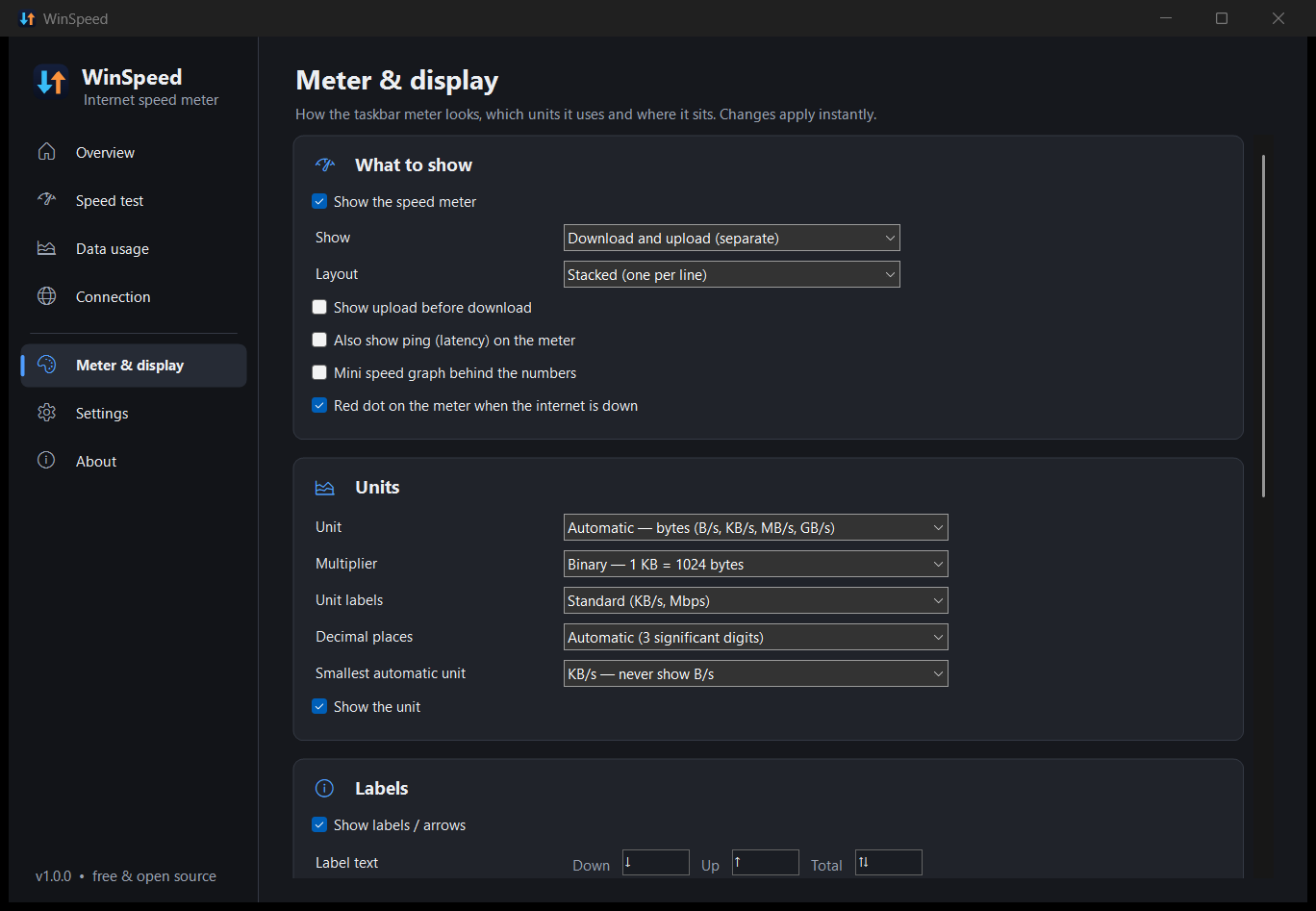
Meter & display settings
Know your connection

Is it your internet, or is it you?

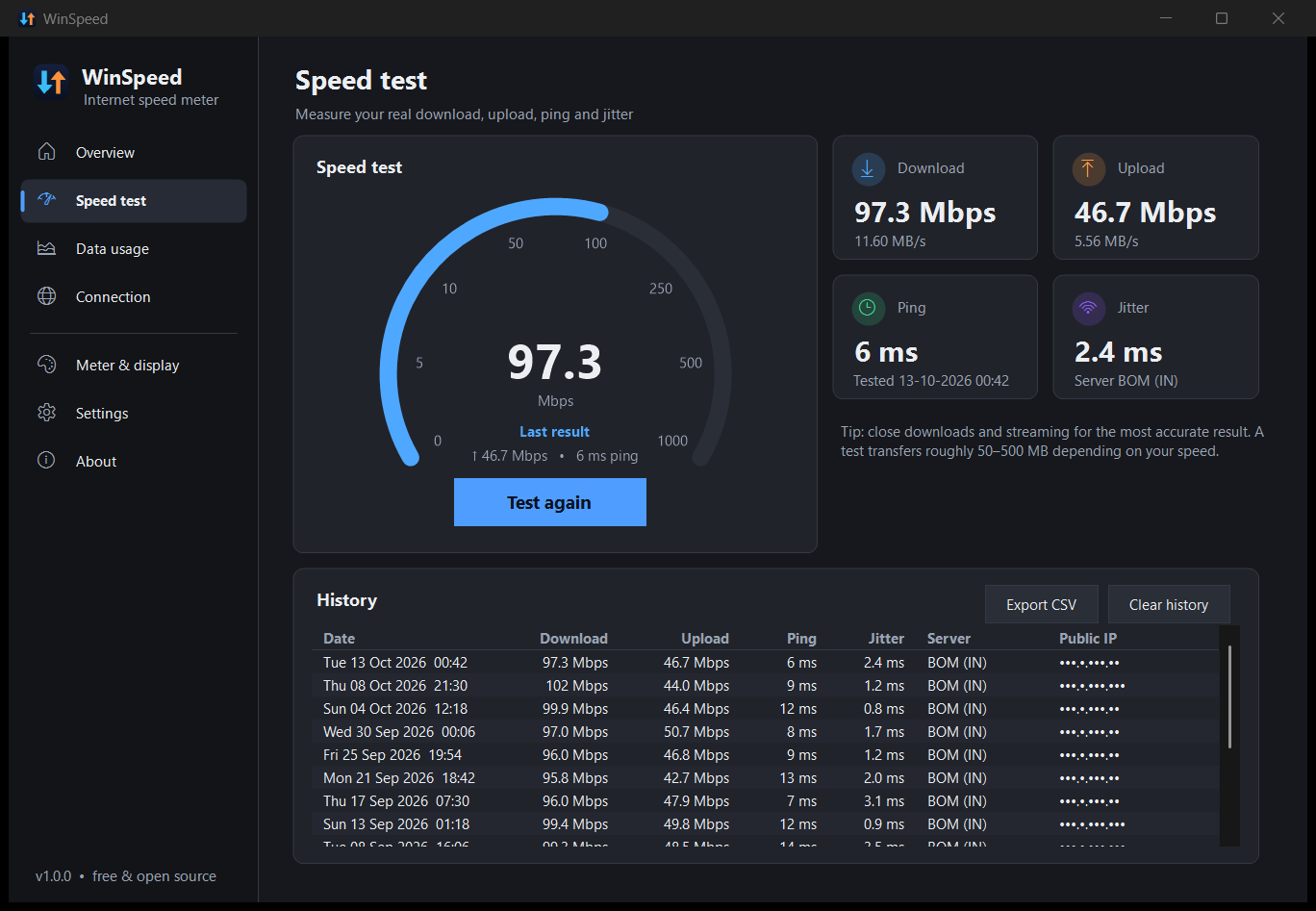
Run a speed test in one click, then compare with history to spot slow evenings or a struggling Wi-Fi.

  • Multi-stream test for download and upload, with ping and jitter
  • History of every result, exportable to CSV
  • Scheduled tests with Task Scheduler and --run-speedtest
Speed test page
Screenshots

Looks right at home on Windows 11.

Light and dark themes that follow your Windows setting.

Lightweight

Built to stay out of your way.

~250 KBsingle exe
~20 MBmemory in the background
0runtimes to install
0ads, trackers or accounts
Get started

Up and running in a minute.

Download

Grab the installer, or the portable zip if you'd rather not install, from the latest release.

Pick your style

The welcome screen asks three questions: units, position, and whether to start with Windows.

Right-click for more

Right-click the meter for the menu, or double-click it to open the dashboard.

FAQ

Questions, answered.

Is WinSpeed really free?

Yes. It's open source under the MIT licence: free for personal and commercial use, with no ads, no premium tier and no account.

Does it work on Windows 11's centred taskbar?

Yes. It sits next to the system tray on Windows 11 and Windows 10, handles vertical and auto-hiding taskbars, and can also run as a floating widget.

Will it slow my PC down?

No. It uses about 20 MB of memory and well under 1 % CPU. The window only uses resources while it's open.

Why does Windows SmartScreen warn me?

The installer isn't code-signed yet. Click More info → Run anyway. Every release is built publicly by GitHub Actions and comes with SHA-256 checksums.

What does it send over the internet?

Nothing about you. A small ping checks your latency (you can turn it off), it checks GitHub for updates once a day (optional), and the speed test and public-IP lookup only run when you ask. Details.

My numbers double when I use a VPN. Why?

They won't by default. WinSpeed counts only physical adapters, because a VPN sends the same traffic through two adapters. You can change which adapters are counted in Settings.

See your speed at a glance.

Free forever. Takes a minute to set up.